

Narrow down your Import List by cost, supplier, push status, and more — instantly.

Note
Note: As your dropshipping business scales, finding specific products in a long Import List becomes difficult. DSers Filters allow you to narrow down products based on existing data — turning a lengthy list into a targeted view.
What Are Filters?
Filters narrow down the Import List based on product data such as supplier, cost, shipping origin, and push status. Unlike manually assigned tags, filters examine existing data to display only matching products. Filters are accessed via the
Filter button
 at the top right of the Import List.
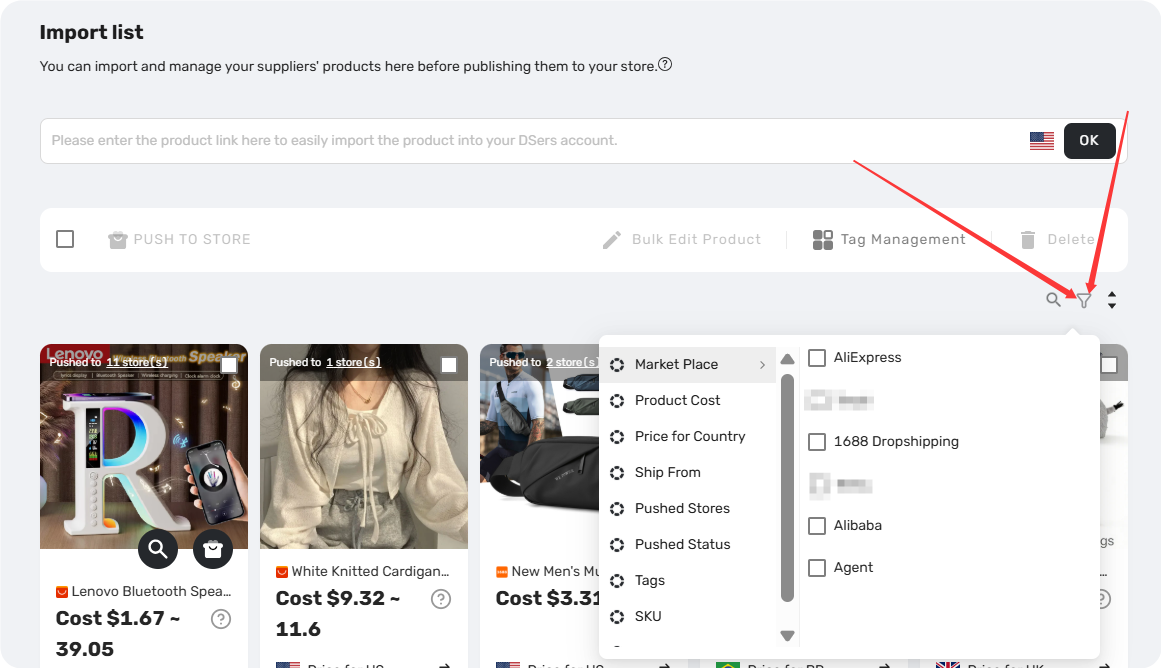
Available Filter Dimensions
| Dimension | What You Can Filter By |
|---|---|
| Marketplace | Supplier platform (AliExpress/ 1688 Dropshipping/Alibaba/Agent) |
| Product Cost | Cost range (greater than/less than/between) |
| Price For Country | Ship To countries available for products |
| Ship From | Shipping origin countries (contains/does not contain) |
| Pushed Stores | Specific connected stores where products have already been pushed |
| Push Status | Whether a product has been pushed to any store (Already pushed to Store/No pushed to Stores) |
| Tags | DSers tags assigned to products (contains/does not contain) |
| SKU | Number of variants (greater than/less than/between) |
| Split | Parent products (original imports) or split products |
Note: "Migrated products" is visible only to migrated users.
How to Apply Filters
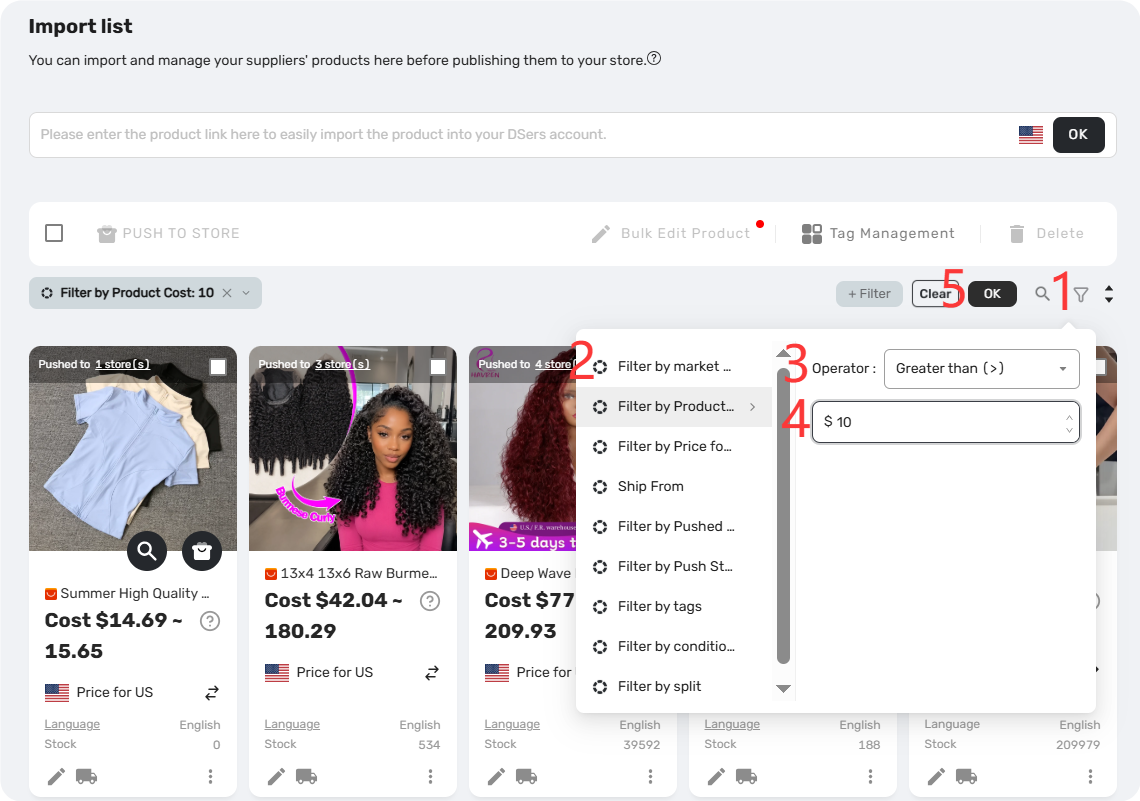
1. Click
Filter
at the top right of the Import List.
2. Select a filter field from the dropdown.
3. Choose the operator condition (e.g.,
contains
 /
does not contain,
greater than
/
does not contain,
greater than
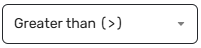 /
less than
/
less than
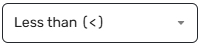 /
between
/
between
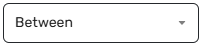 )
and enter values as applicable.
)
and enter values as applicable.
4. Add additional filter conditions as needed. Selected filters will appear on the left.
5. Click
OK
 to apply all filters at once.
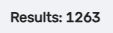
Filter results display a count at the bottom:
Results: XX
Note: Filters won’t be cleared by refreshing the page or switching to other tab. Click Clear to remove all applied filters
Combining Tags and Filters
For maximum organizational efficiency, tags and filters may be used together:
- Tag products by category, supplier, priority, or any custom system
- Filter by those tags to view only the relevant products
- Apply additional filters (cost range, push status, etc.) to refine results further
Example workflow:
- Tag all products from a specific supplier as "Priority Review"
- Filter by that tag to view only those products
- Add a Product Cost filter to see only high‑cost items from that supplier
This approach transforms the Import List from a static, lengthy list into a dynamic, searchable workspace.
Refer to this article to learn more about Tags features for the DSers Import List—How to Organize Your Import List Using Custom Tags
Related Articles
- How to Organize Your Import List Using Custom Tags
- Bulk Import & Edit: Add Products in Batches
- Edit & Push: Customize Products Before Publishing
- How to Revert Deleted Products from Activity Log
- Activity Log: Track Every Change in Your Account
FAQ Section
Quick answers to the most common questions about DSers filters and product management.
| Get Started Now to Grow Your Online Business with the DSers! |
