

Learn how to change your DSers account time zone and how it affects your orders and reports.
Note
By default, your DSers account time zone is based on your browser settings.Click here to start dropshipping now with DSers
Setting it correctly ensures that your orders, notifications, and reports display the accurate dates and times.
This is especially helpful if you or your team travel across regions or work remotely.
How to reset your DSers account time zone
- Login to DSers.
-
Hover over the Account name on the right of the Top Bar and click
 Account.
-
Scroll to the Time zone section on General, click
 at the right side of the same line of your current time zone.
- In the Drop-down List, choose your desired time zone and click SAVE.
Important: You can only change your time zone once by yourself. If you need to modify it again, please contact DSers Customer Service.
How DSers account time zone affects other features
Changing your time zone updates the time display across several features in DSers:
| Feature | Path to feature | Application |
|---|---|---|
| Order Card |
 Open Orders > Order Card
|
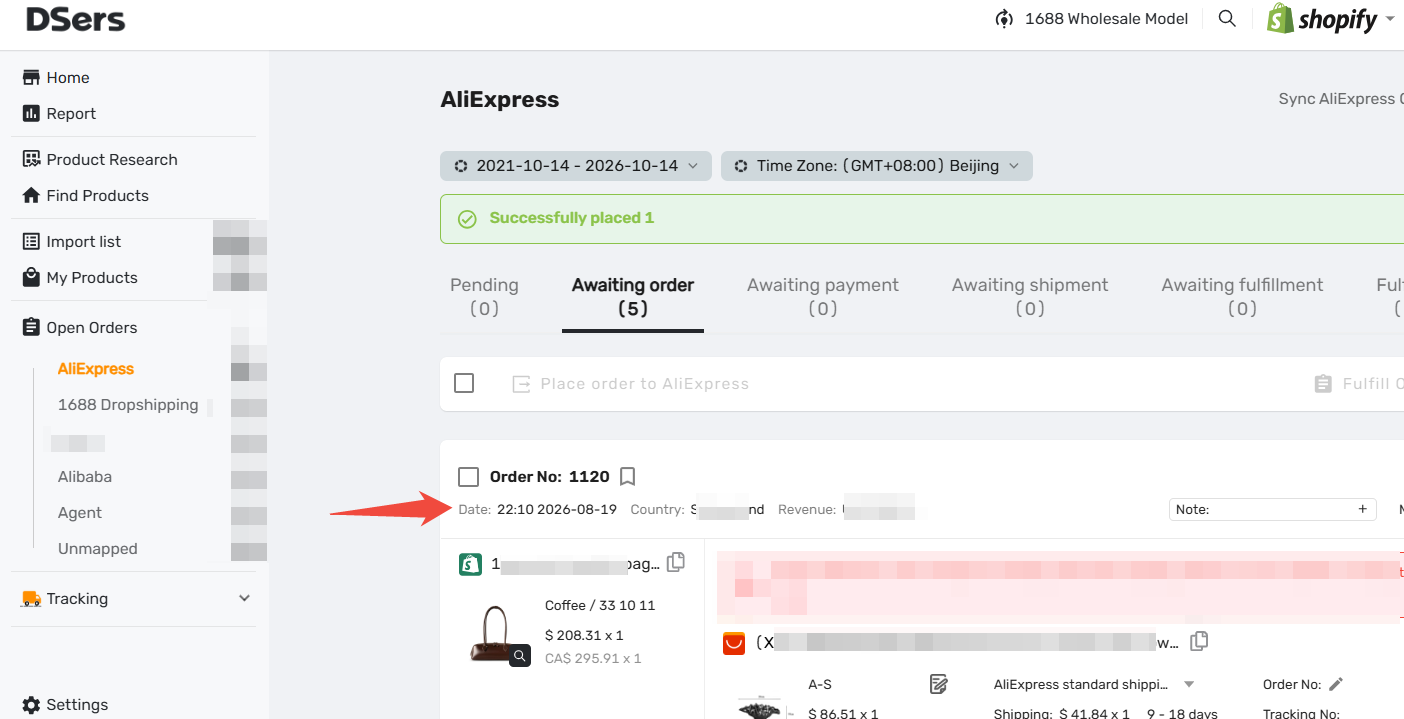
The Date of all old and new orders on the Order Card will be displayed according to the updated time zone.
|
| Filter |
Open Orders(
 Tracking)> Any supplier tab(Tracking status)> Navigator Bar >
 Filter
|
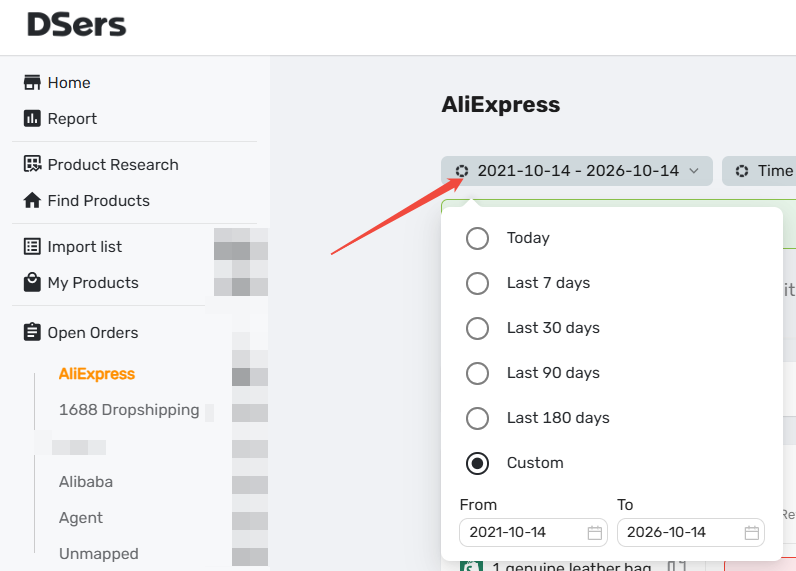
The Date part is based on the new time zone.
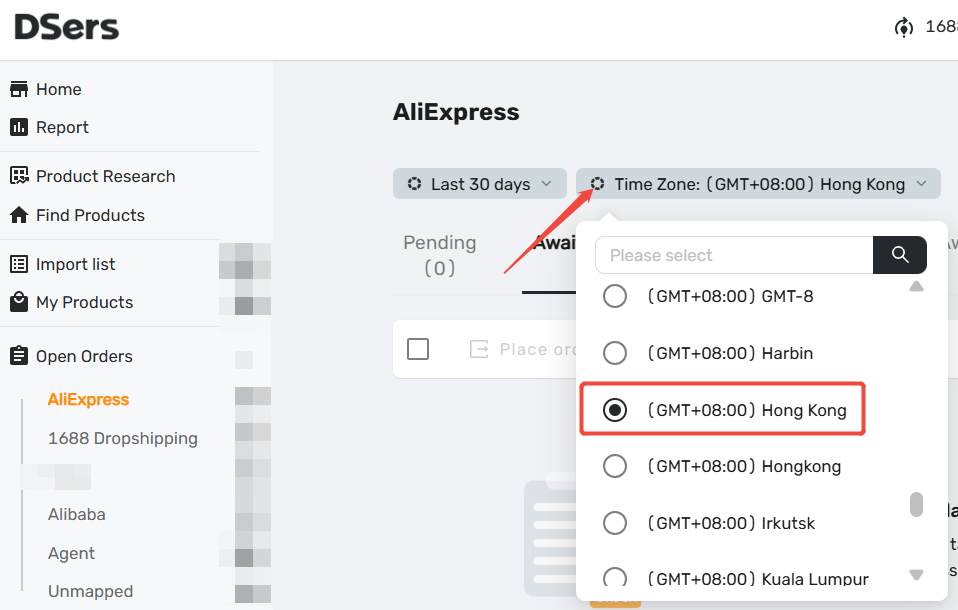
 And the new time zone will be selected by default in the Time Zone part.
|
| Notification |
Top Bar >

|
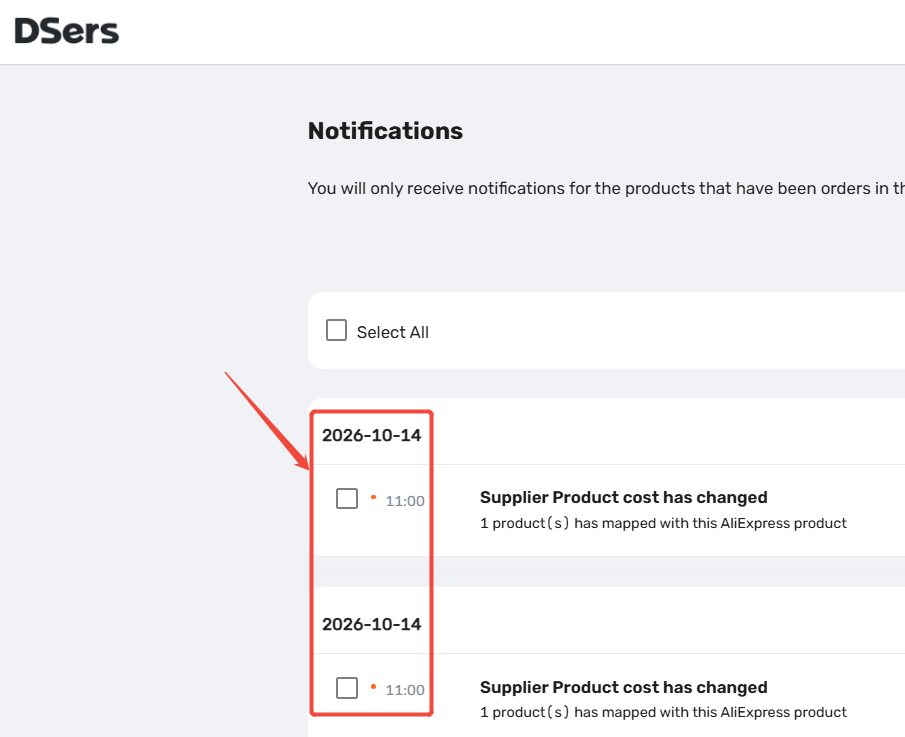
The new time zone will be applied to the time of notifications for new orders.
|
| Synchronize store orders |
 Settings > Order Settings > Synchronize store orders
|
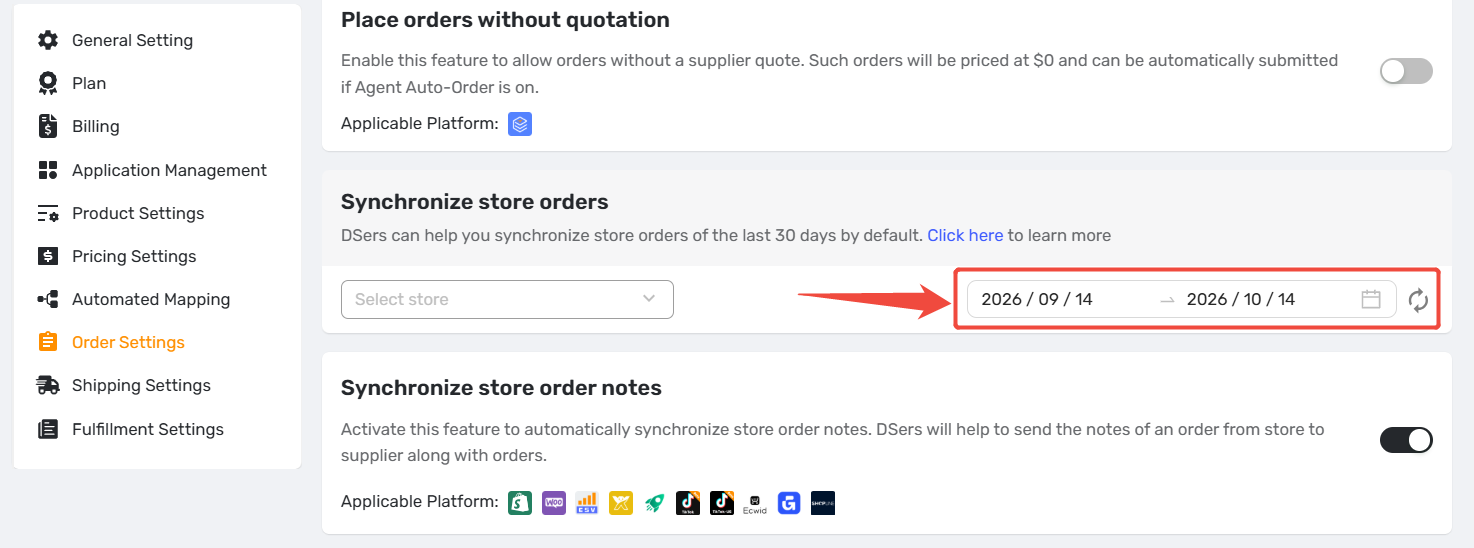
In the Synchronize store orders section, when you select a store and time range and click the Sync icon, DSers will synchronize them based on the new time zone.
|
| Report |
Side Bar >
 Report
|
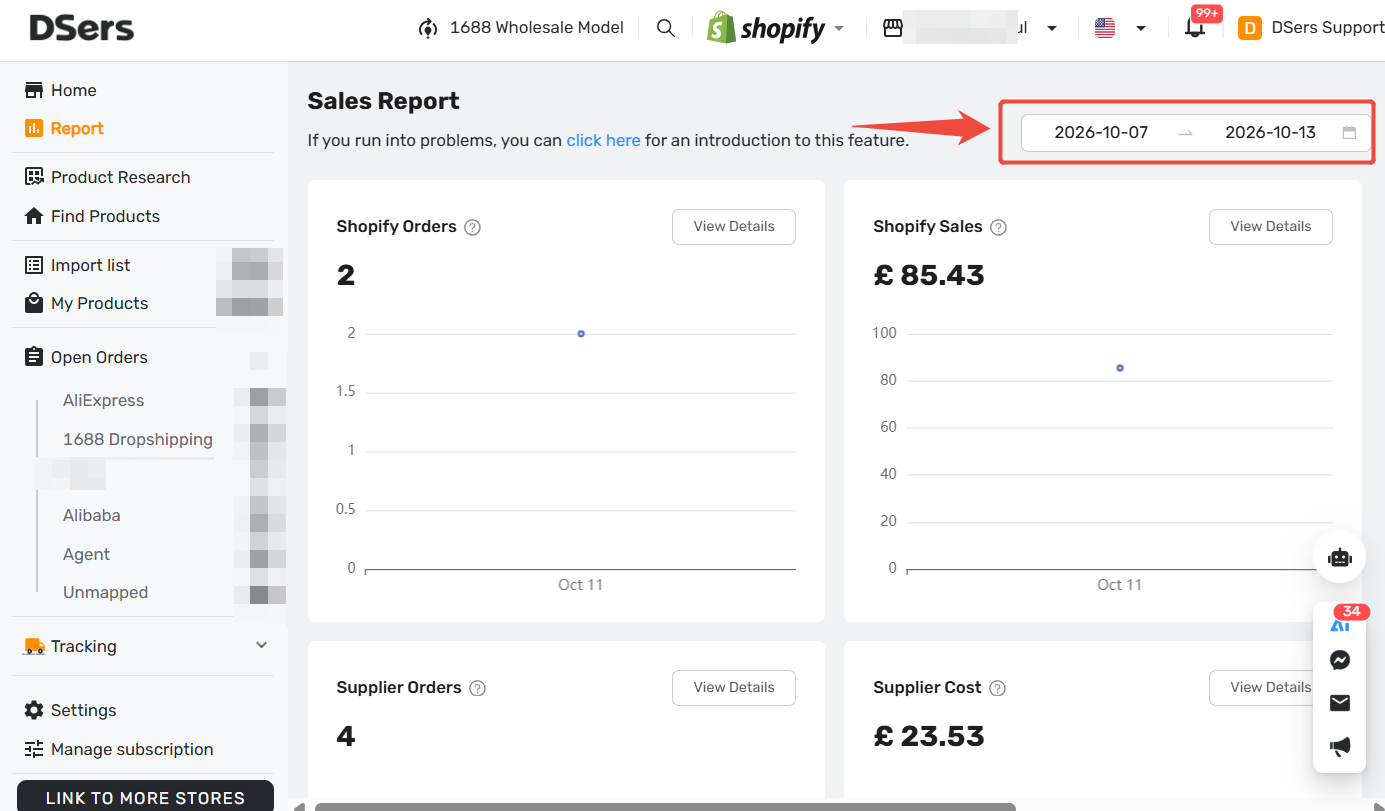
To activate the Report feature, one task is to set the time zone. The report data will be displayed based on the new time zone.
|
Related Articles
- DSers Profile Management: How to Update Your Email and Password
- Not Getting Verification Code Emails from DSers? Here's How to Fix It
- Store Authorization Failed? How to Relink Store
- Staff Accounts: Let Your Team Help Without the Risk
- Notification Frequency: Get Alerts When You Need Them
FAQ
Here are some common questions about setting your DSers account time zone.

Get Started Now to Grow Your Online Business with the DSers!