

Learn how to activate and customize free shipping confirmation emails for your WooCommerce store in DSers.
Note
DSers can send shipping confirmation emails to your customers automatically—no paid WooCommerce extension or third-party plugin required.Click here to start dropshipping now with DSers
This guide covers how to set up your email content and templates in DSers, followed by the general fulfillment settings that affect these emails.
Set up your Shipping Confirmation Email
Path: DSers > Settings > Fulfillment Settings > WooCommerce tab
Locate the Shipping Confirmation Email Settings panel. This section controls what your customer sees in the email and who it comes from.
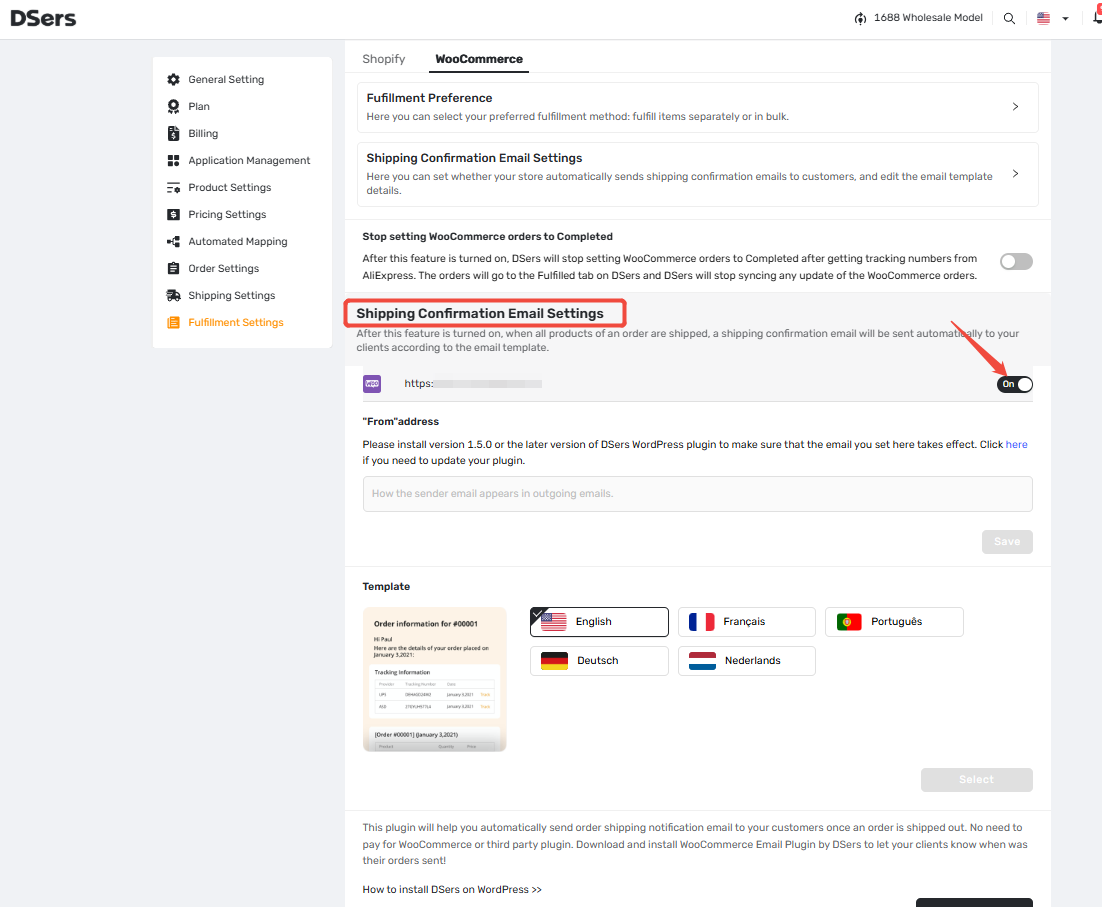
1. Activate the Email
Turn on the toggle next to your store URL.
Note: Turning on the toggle triggers an automatic check for the DSers WordPress plugin.
If it's not installed, the feature won't work. Scroll down and click Download Plugin to install it. See [Install DSers Dropshipping Solution plugin on WordPress].
When is the email sent? The email is triggered when the order's tracking numbers are synced to your store and the order status becomes Fulfilled.
2. Set your Sender Address
Enter the sender name that will appear in your customers' inboxes.
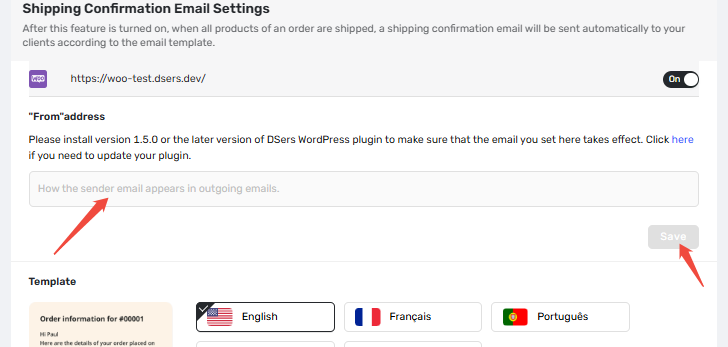
Tip: If you leave this field blank, the system will default to your WordPress admin email address.
3. Select the Email Language
Under Template, click Select to choose the email language (English, Français, Português, Deutsch, or Nederlands).
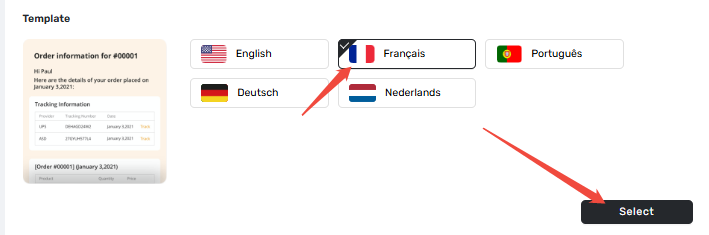
Note: The template design is fixed; you can only change the language.
4. Customize Tracking Details
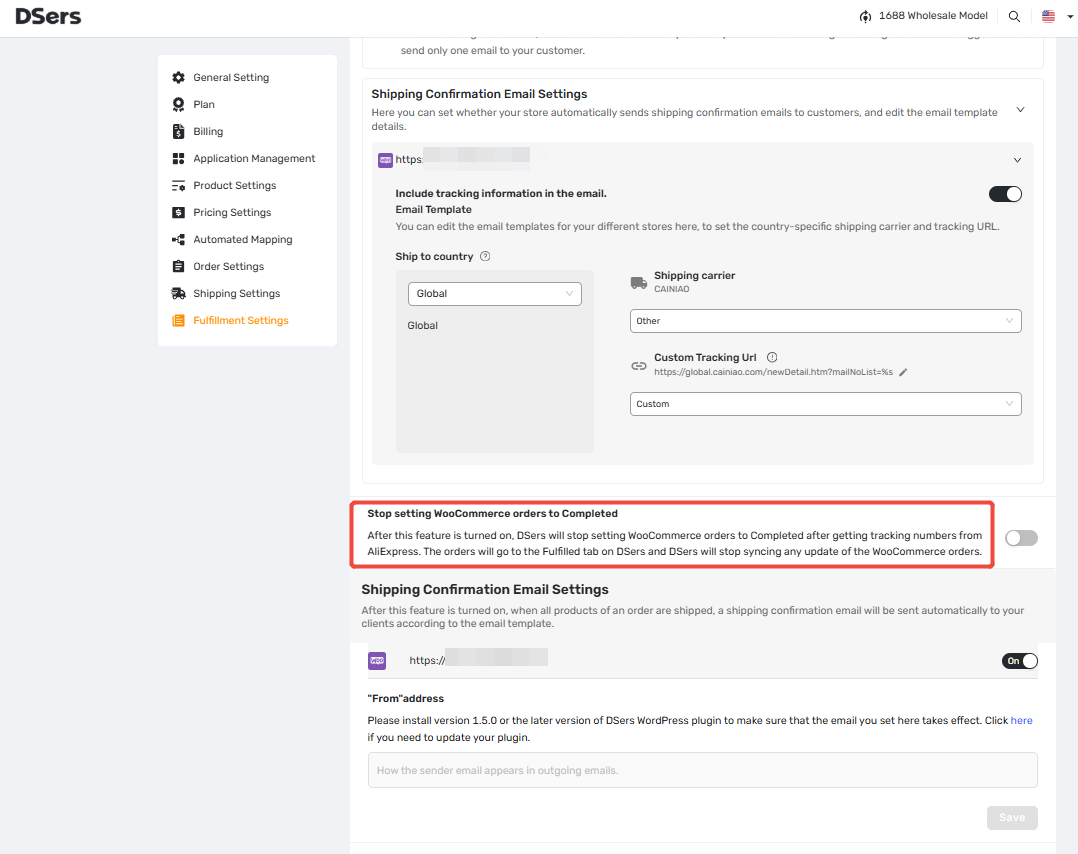
Scroll up to the Include tracking information in the email and Email Template sections to adjust:
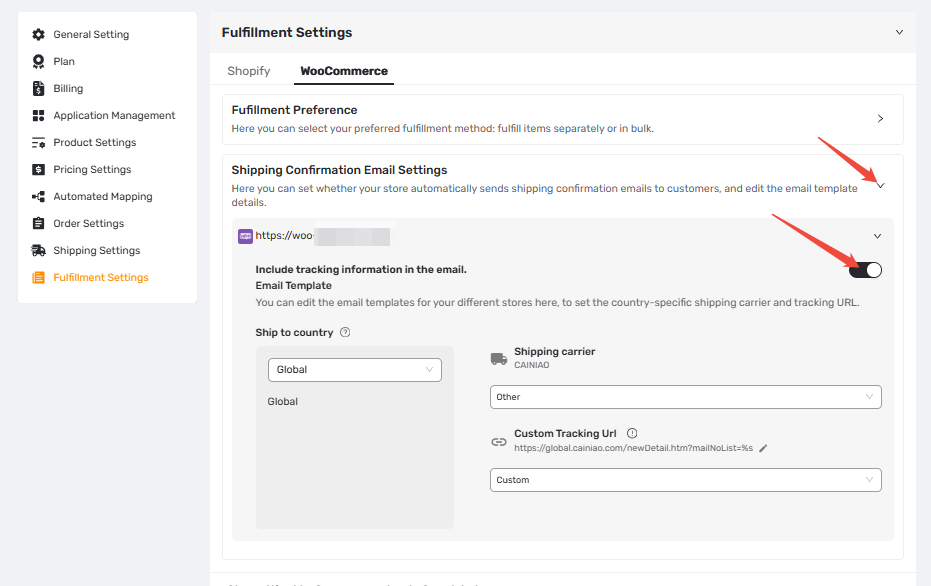
- Include tracking information: Toggle on to show tracking details.
- Ship to country: Default is Global. Set country-specific overrides here.
- Shipping carrier: Select Other to avoid inaccurate names.
- Custom Tracking Url: Enter only the base URL. DSers appends the tracking number automatically.
For details, see [How to Customize Shipping Carrier and Tracking URL for Shipping Confirmation Email].
Other Fulfillment Settings (Optional)
The settings around this panel affect your overall fulfillment flow:
- Fulfillment Preference: Choose between fulfilling items separately or in bulk. For details, see [Fulfillment Preference: How Bulk vs. Separate Fulfillment Affects Your Orders].
- Stop setting WooCommerce orders to Completed: If turned on, DSers stops marking orders as Completed after getting tracking numbers from AliExpress. Orders will stay in the Fulfilled tab on DSers, and DSers stops syncing further WooCommerce updates.
- Send tracking number to PayPal: Authorize DSers to sync tracking numbers to PayPal. See [How to Sync Tracking Numbers to PayPal for Faster Payment Release].
How to Resend a Shipping Confirmation Email
If a customer didn't receive the email, you can resend it directly in DSers:
- Login to DSers, ensure the correct store is selected at the top right, and go to Open Orders.
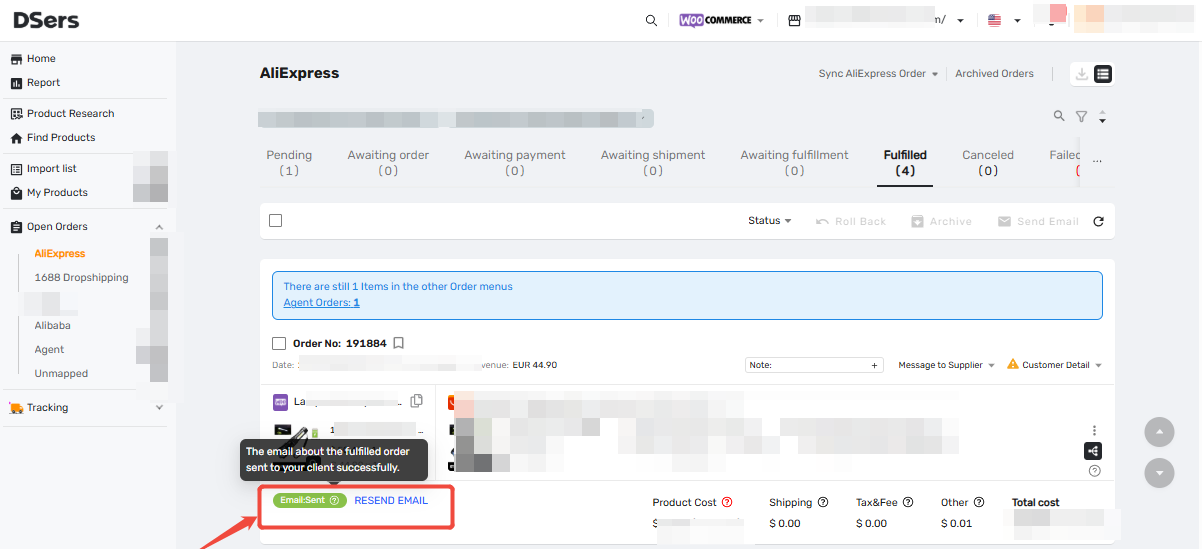
- Under the Fulfilled tab, find the order and click RESEND EMAIL.
- Check the order card for the status: a green Email Sent tag means success, and a red Failed tag means you can click to retry.
Related Articles
- Install DSers Dropshipping Solution plugin on WordPress
- How to Customize Shipping Carrier and Tracking URL for Shipping Confirmation Email
- Fulfillment Preference: How Bulk vs. Separate Fulfillment Affects
Related Articles
- Install DSers Dropshipping Solution plugin on WordPress
- How to Customize Shipping Carrier and Tracking URL for Shipping Confirmation Email
- Fulfillment Preference: How Bulk vs. Separate Fulfillment Affects Your Orders
FAQ
Here are some common questions about shipping confirmation emails for your WooCommerce store in DSers.

Get Started Now to Grow Your Online Business with the DSers!