

Refresh product info, images, and prices while keeping every Ad URL fully functional.
Note
Normally, pushing a product to Shopify creates a new link – which breaks your active ads. Or you may simply want to update a newly mapped product's details in your store. The Replace Product feature lets you swap suppliers, variants, images, and descriptions while keeping your original Shopify URL and ad analytics intact.
What Does "Replace Product" Actually Do?
Before we dive into the clicks, here's what happens under the hood:
- Deletes the old supplier's variants from Shopify.
- Creates a brand new set of variants based on your new AliExpress supplier.
- Preserves your original Shopify product URL.
- Protects your ad accounts (links stay valid) and your product's sales history in Shopify.
Tips: Regardless of whether you were using Basic or Advanced Mapping before, after using Replace Product, DSers will automatically switch the product to Basic Mapping.
Step-by-Step Guide: How to Replace a Product
Step 1: Initiate the Swap
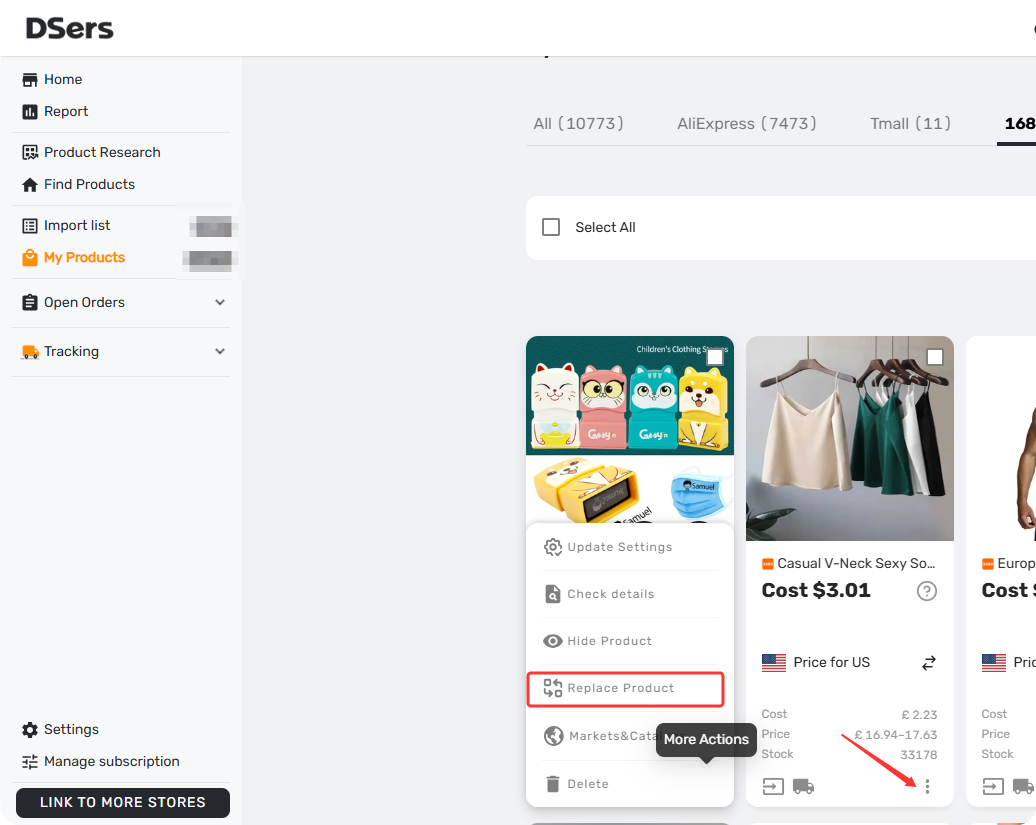
Go to DSers > My Products
 . Find the product card, click the three dots (More Actions
 ), and select Replace product option
 .
.
Step 2: Paste the New Supplier URL
Paste the URL of your new product link (please select the correct supplier platform before pasting the supplier link), click REPLACE PRODUCT
 .
.
Step 3: Configure Your New Product Details
This is where you control exactly what gets pushed to your store, similar as import list-edit products page. Here's what happens to each part of your product when you hit replace:
| Section | Stays old | Gets new |
|---|---|---|
| Shopify product link | ✅ Keep (so your ads don't break) | |
| Product title | You can copy original name | You can keep or edit it |
| Pricing | You can update manually or auto-apply your Price Rule | |
| Variants | You can delete, rename, or add new ones | |
| Description | ✅ Keep original (default) | Or pull in the new supplier's description |
| Images | ✅ Keep original (default) | Or select new ones from the gallery |
Tip: You can keep your SEO-optimized original description and Optimized images.
Step 4: Finalize
Click REPLACE PRODUCT
 at the bottom. Just wait a few seconds until it changes to "Successfully replaced."
What happens to your orders?
Future awaiting orders will automatically be placed with new supplier.
Related Articles
- Edit & Push: Customize Products Before Publishing
- Mapping Explained: How DSers Knows Which Supplier to Order From
- Supplier Optimizer: Find Better Suppliers in Seconds
- Advanced Mapping: Route Orders to the Right Supplier by Country
- How to Change a Product's Supplier Mapping for Awaiting Orders
FAQ Section
Everything you need to know about Replace Product and how to swap suppliers without breaking your ad links.
| Get Started Now to Grow Your Online Business with the DSers! |
