

Configure store-specific product settings and view pricing across connected stores from a single interface.
Note
Operating multiple stores often requires different product origins, presets, or pricing rule configurations per store. DSers allows users to manage these store-specific settings directly from the Import List without duplicating imports or switching between dashboards.Click here to start dropshipping now with DSers
Store Level Specific Capabilities
Bulk Edit Products Across Stores
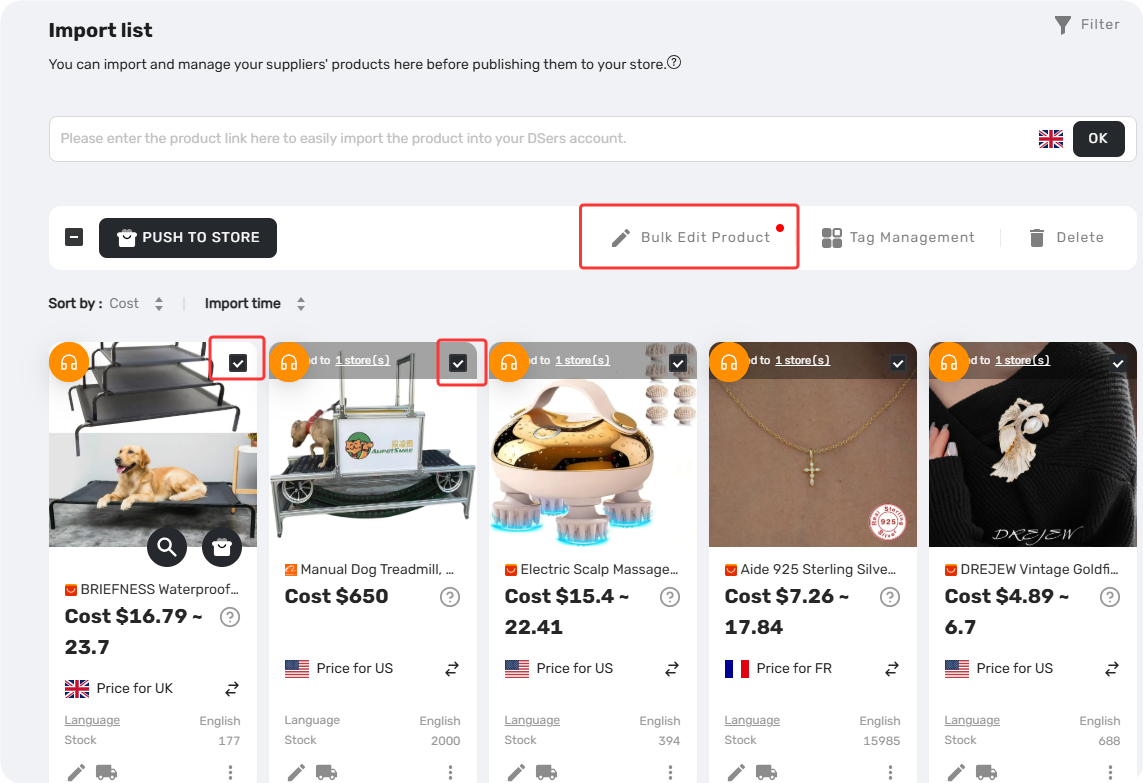
1. From the Import List, select the products to be edited and click
Bulk edit product
 .
.
2. Use the
Store selector
 to choose the target store.
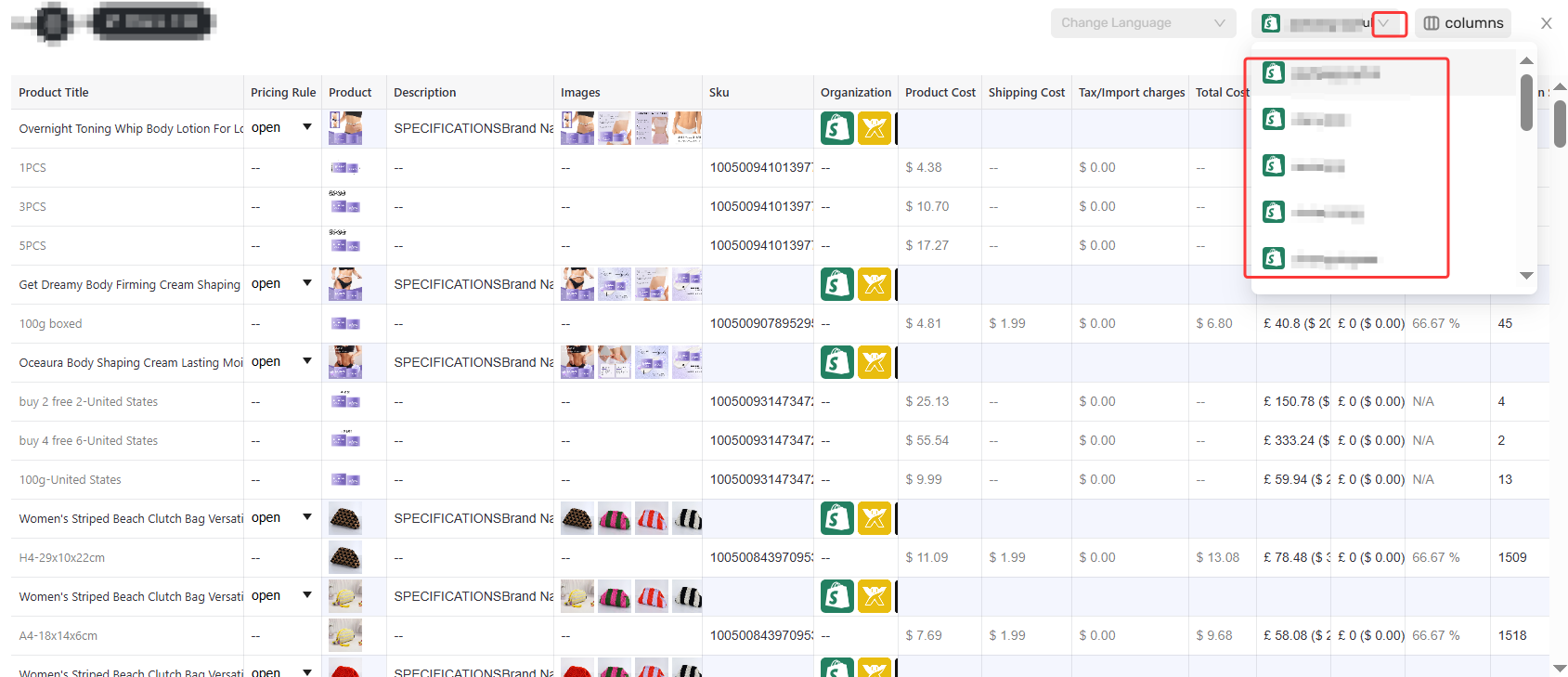
Depending on the settings you wish to modify:
| If you are modifying... | You can... |
|---|---|
| Origination settings | Modify origination settings for the selected products. Changes apply only to the selected store. |
| Other product details | Edit other product details based on your needs. Changes made in this tab apply globally to the product and affect all stores. |
Edit Product Details
1. Navigate to Import List and click the
pencil icon
 on the desired product card.
2. Depending on the tab you are working in:
| If you are in... | You can... |
|---|---|
| Product tab | Modify origination information. Changes apply only to the selected store. |
| Variants tab | Switch between stores to view how each store's pricing rule affects variant sale prices. Price edits made in this tab apply globally to the product and affect all stores. |
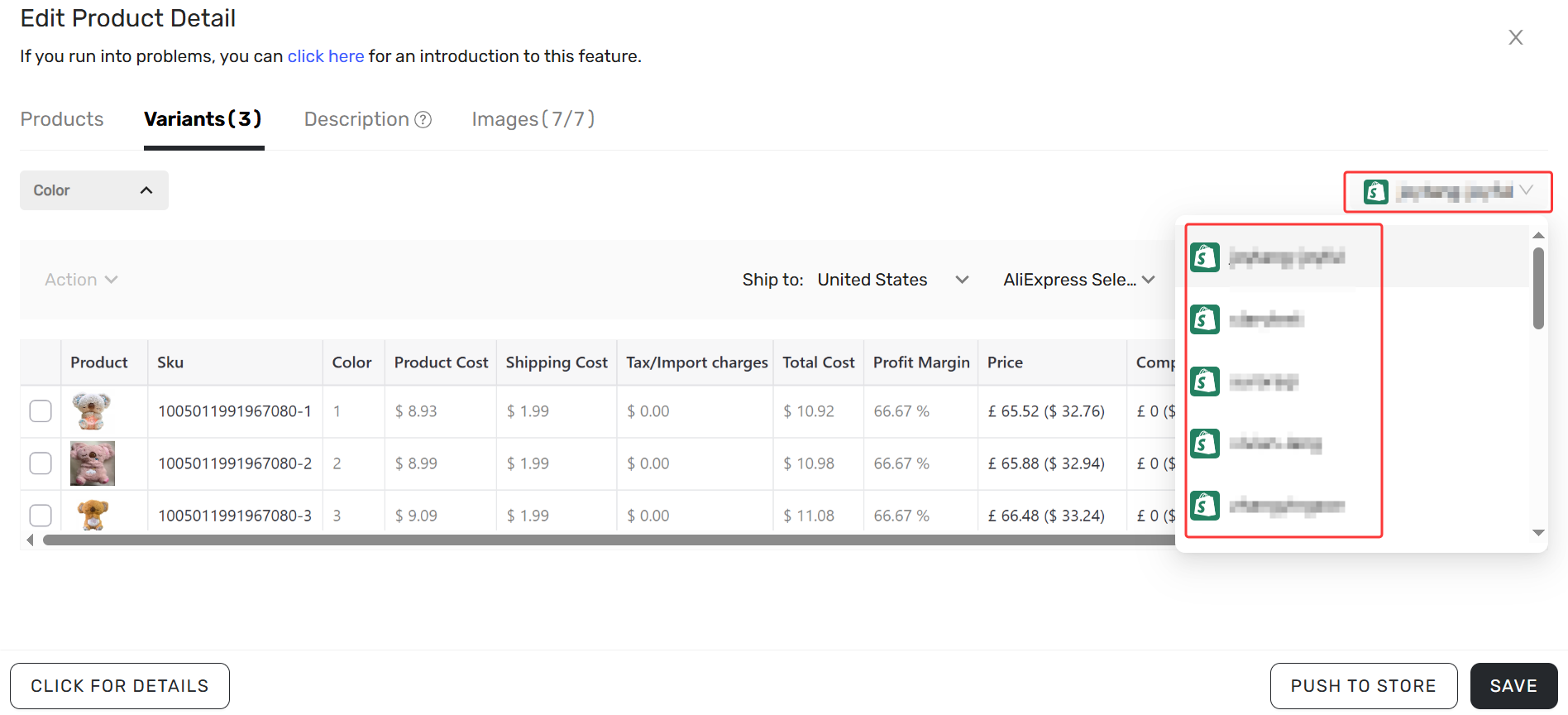
Tips About Pricing Rule Behavior
- Pricing Rule status is store‑specific.
- Status can be modified per store via the Product tab and Bulk Edit Product.
- When enabled: prices follow Settings-Pricing Settings configuration.
- When disabled: prices reflect manually entered values.
Where to link more store
Make sure you're logged into the store you want to link before authorizing.
Location 1: Dashboard
Click LINK TO MORE STORES in the bottom-left sidebar → select your platform → follow the authorization steps.
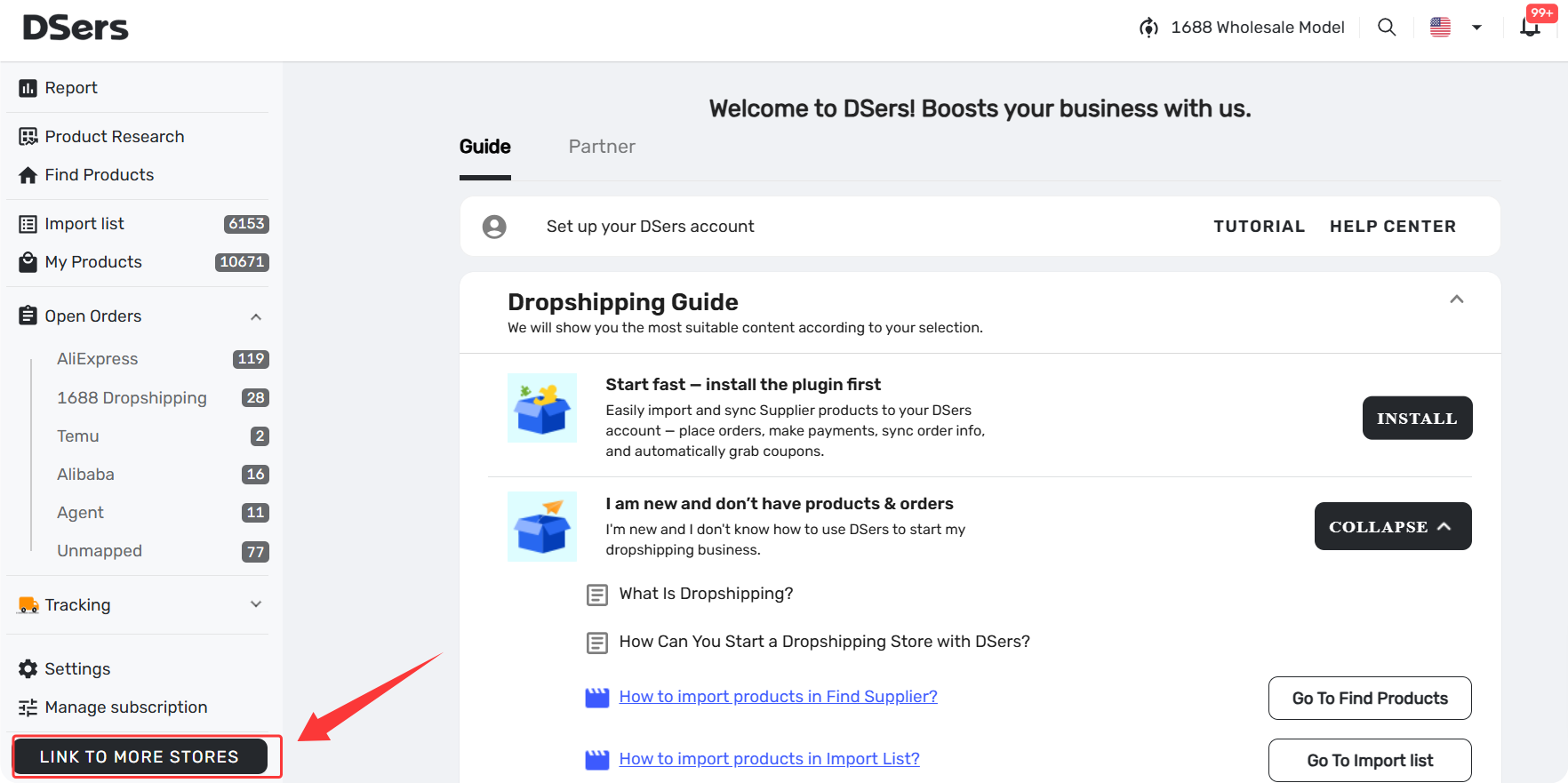
Location 2: Settings
Go to Settings → Application Management → Sales Channel → find your platform → click Add Stores → authorize your store.
Tip: Use Location 2 to add multiple stores on the same platform (e.g., two Shopify stores).
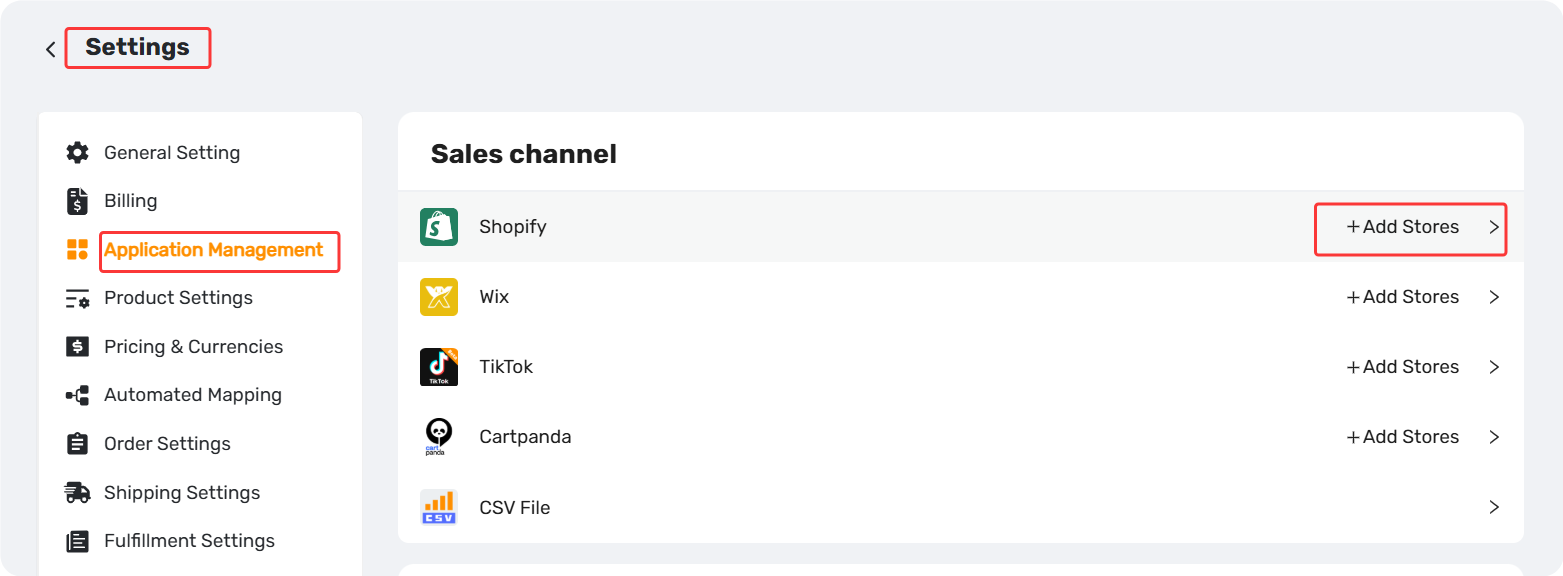
Related Articles
- Multi-Store Sync: Manage Multiple Stores from One Dashboard
- How to Connect Multiple Stores to a Single DSers Account
- Bulk Import & Edit: Add Products in Batches
- Master Pricing Settings: 2 Ways to Automate Your Product Pricing
- Edit & Push: Customize Products Before Publishing
FAQ Section
Quick answers to the most common questions about DSers store-level management and multi-store pricing.
| Get Started Now to Grow Your Online Business with the DSers! |
