

A complete guide to diagnosing and fixing orders stuck in Awaiting Fulfillment on Shopify
Note
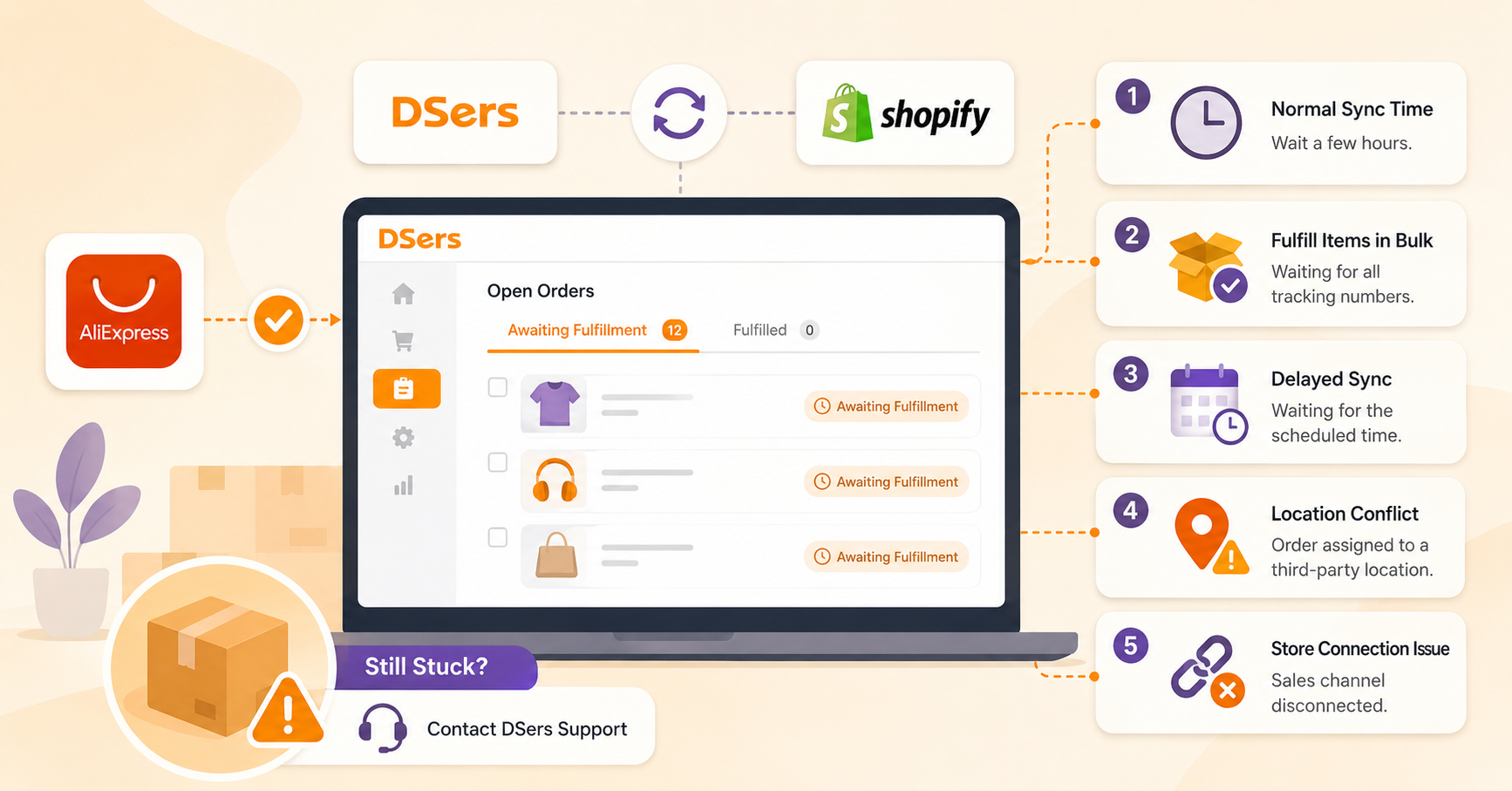
You've received a tracking number from your AliExpress supplier, but your order is still sitting in the Awaiting Fulfillment tab. This article explains why and how to fix it.Click here to start dropshipping now with DSers
1. DSers Is Still Processing the Order (Normal Sync Time)
What's happening: DSers needs a few hours to update the fulfillment status to your Shopify store.
What to do:
- Wait a few hours and check the Fulfilled tab—the order will move there automatically.
- If stuck for more than 24 hours and none of the scenarios below apply, contact DSers Support.
2. Fulfill Items in Bulk—Waiting for All Tracking Numbers
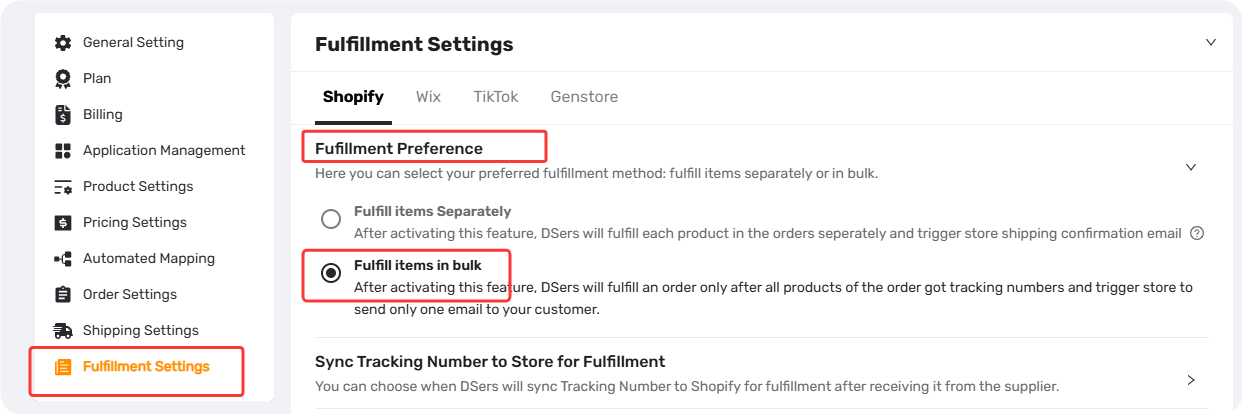
What's happening: Under DSers > Settings > Fulfillment Settings > Fulfillment Preferences, you have Fulfill items in bulk selected. DSers waits until every line item has a tracking number.
What to do:
- Wait: Once all tracking numbers are synced, the order will move to Fulfilled automatically.
- Change setting: Switch to Fulfill items separately so each fulfilled line item syncs immediately.
Related article: [Fulfillment Preference: How Bulk vs. Separate Fulfillment Affects Your Orders]
3. Delayed Sync to Store—Waiting for Scheduled Time
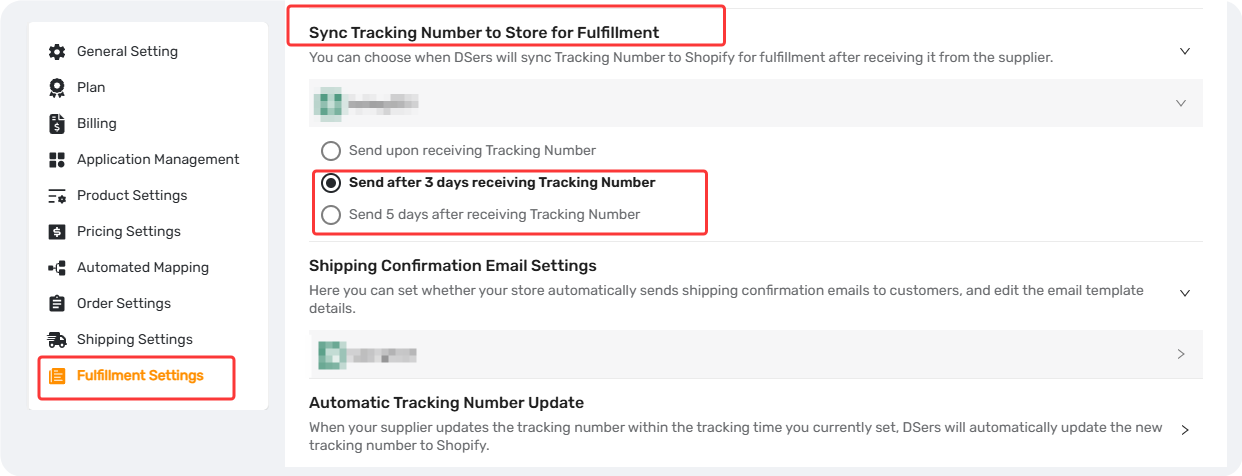
What's happening: Under DSers > Settings > Fulfillment Settings, Sync Tracking Number to Store for Fulfillment is enabled with a delay, for exmaple, “Send after 3 days receiving Tracking Number”.
What to do:
- Wait: The order will move to Fulfilled when the scheduled time arrives.
- Change setting: Adjust or disable the delay time.
4. Location Conflict—Order Assigned to a Third-Party Location
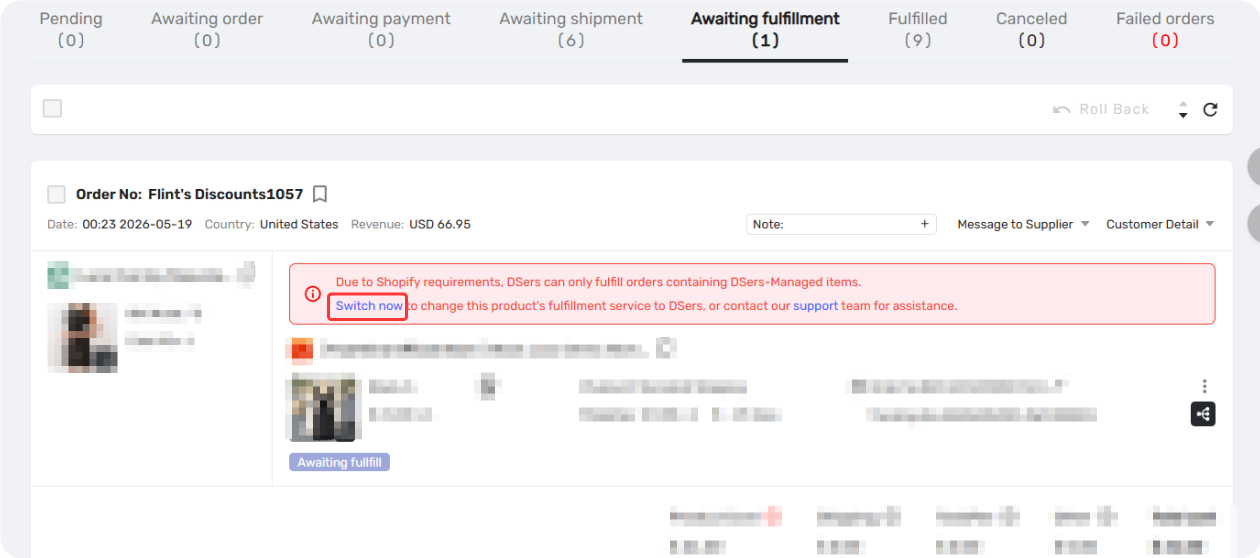
What's happening: The product location is tied to a third-party app, not dsers-fulfillment-service or a standard Shopify location. A error report appears: "Due to Shopify requirements, DSers can only fulfill orders containing DSers-Managed items." A Switch Now button shows next to the affected product line item.
What to do:
- In DSers > Open Orders > Awaiting Fulfillment, open the order and click Switch Now on the affected product line item.
- Wait 1 hour for the change to take effect.
- If the issue persists after multiple attempts, contact DSers Support.
5. Store Connection Issue—Sales Channel Disconnected
What's happening: The connection between Shopify and DSers is interrupted, blocking fulfillment status updates.
What to do:
- Go to DSers > Settings > Application Management.
- In the Sales Channel section, check if your store is Connected.
- If not, click Reconnect and follow the authorization steps.
- Wait 1 hour, then refresh DSers and check the order status.
Still Stuck? Contact DSers Support
If your order remains in Awaiting Fulfillment for more than 24 hours and none of the above solutions helped, contact DSers Support with:
- DSers account email
- Store name
- Order number(s)
- Solutions you've already tried
Related Articles
- Customize Shipping Confirmation Email Settings
- Fulfillment Preference: How Bulk vs. Separate Fulfillment Affects Your Orders
- Fulfilling Customer Orders: How to Place & Pay for Supplier Orders
- Bulk Order Processing: Handle Hundreds of Orders in Seconds
- How to Contact DSers Support and Submit a Ticket
FAQ Section
Quick answers to the most common questions about DSers order fulfillment and stuck orders.

Get Started Now to Grow Your Online Business with the DSers!