

Learn how to import Temu products, sync Inventory&Cost, and fulfill orders using the DSers Chrome Extension.
Note
Temu is now supported on DSers. Unlike AliExpress, DSers interacts with Temu entirely through the DSers Chrome Extension. You must keep the extension installed and logged into your Temu account to use it.Click here to start dropshipping now with DSers
Before You Start
1. Install the latest DSers Chrome extension
Download or update it from the Chrome Web Store here, and keep it enabled in your browser.
If you haven't installed it yet, refer to [Install & use DSers Chrome extension] for detailed steps.
2. Set your Temu site and country
Log in to Temu and ensure the Country/Region matches your target market (this determines product availability and pricing).
- To change it, open any Temu page, click Country/Region & Language, and switch the country.
- The extension icon displays the flag of your selected country. You can click the button to see country switch guidance.
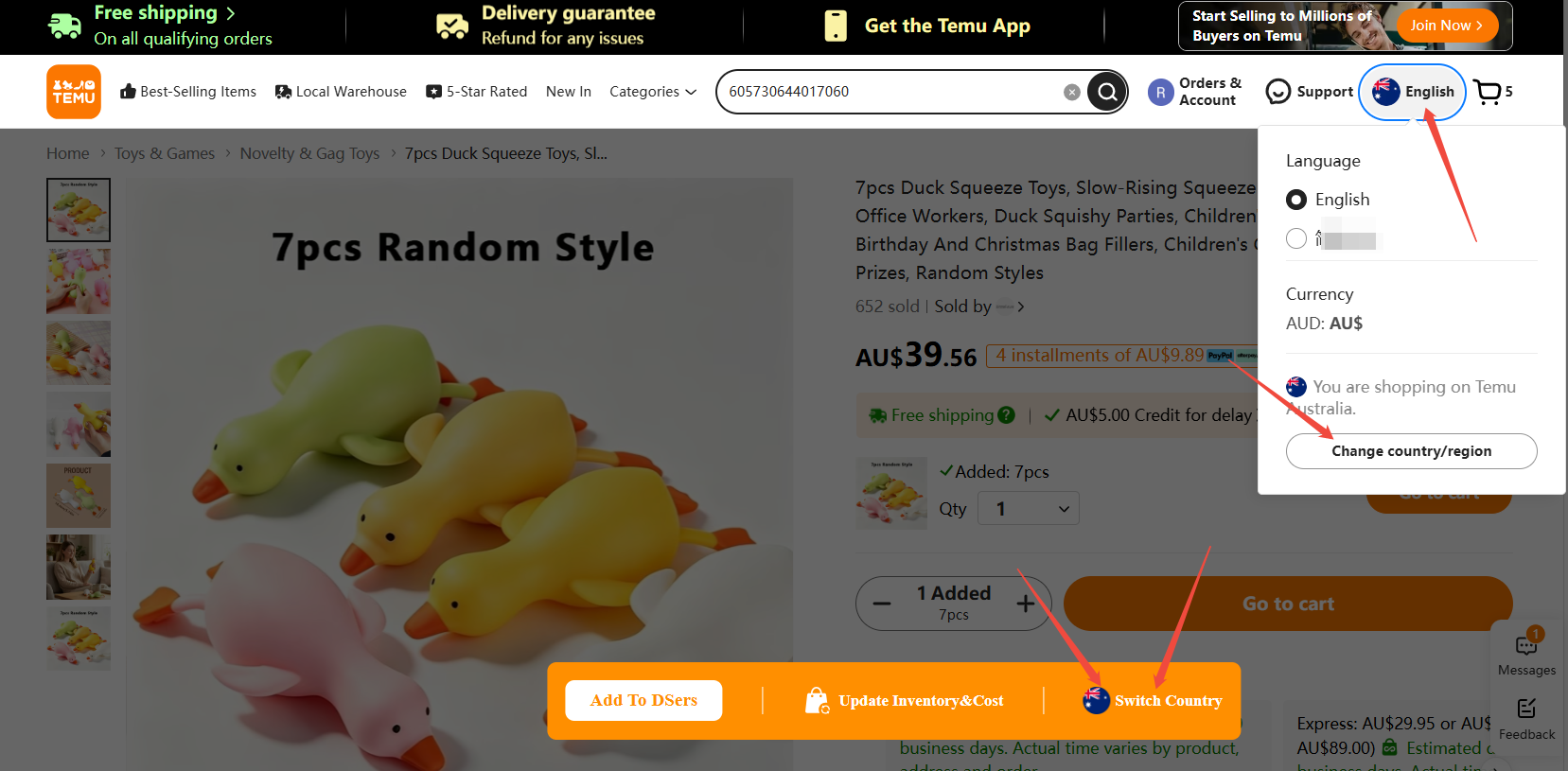
Important: Temu divides its platform into independent regional sites. Your Temu login country must always match the "Ship to" country in your DSers Import List. If they don't match, imports and orders may fail.
How to Import Temu Products
Since the Temu product pool in "Find Products" is currently unavailable, you can import products using two methods:
Method 1: Import via Product Link
- Copy the product link from the Temu website.
- Go to DSers > Import List and paste the link into the search bar.
- The extension will fetch the product data. If the Temu site country does not match your Import List country, you'll be prompted to confirm.
Method 2: Import via Chrome Extension Buttons
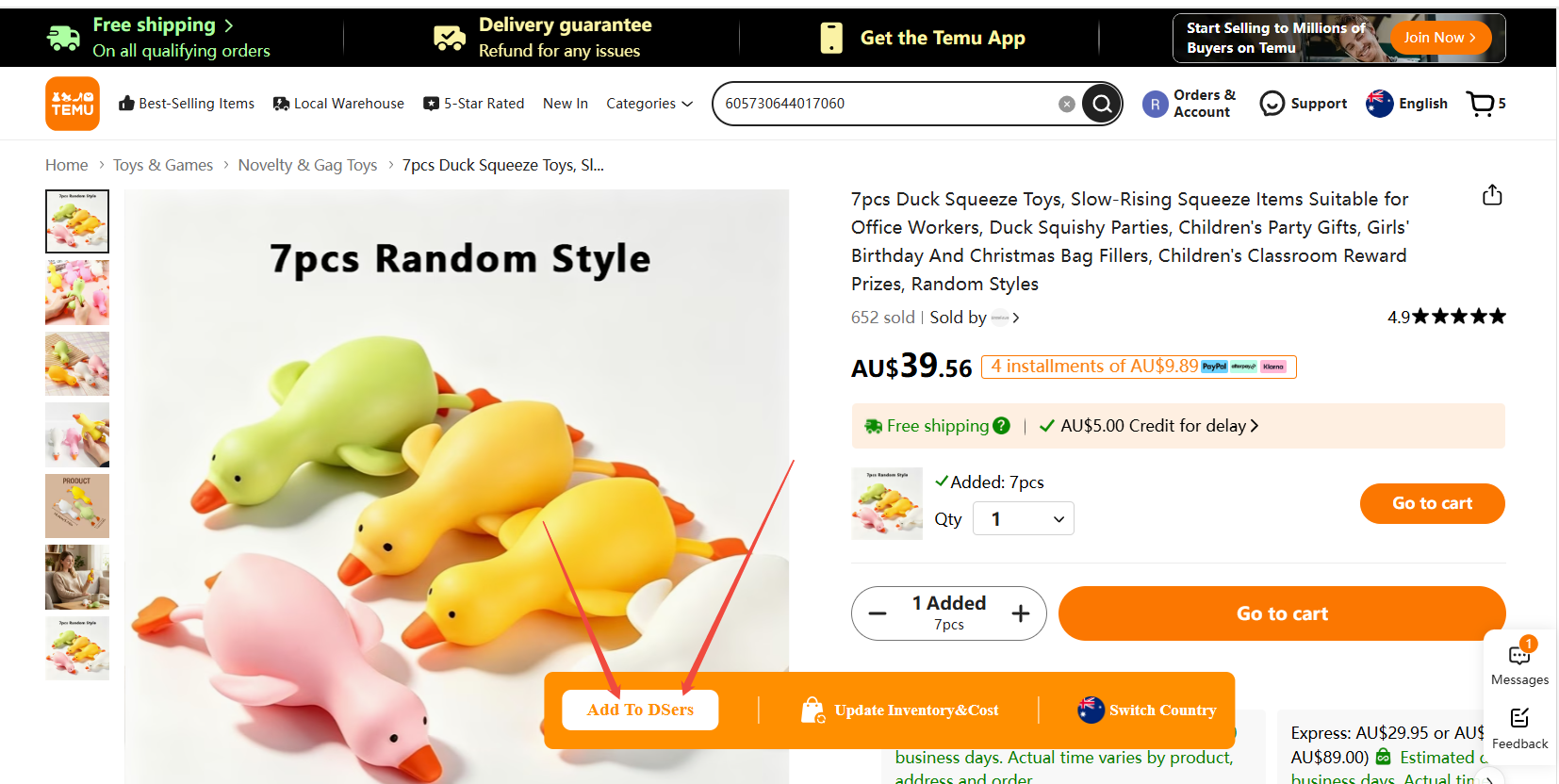
When browsing Temu, you can click the Add to DSers button directly via the DSers extension. This button appears in three places:
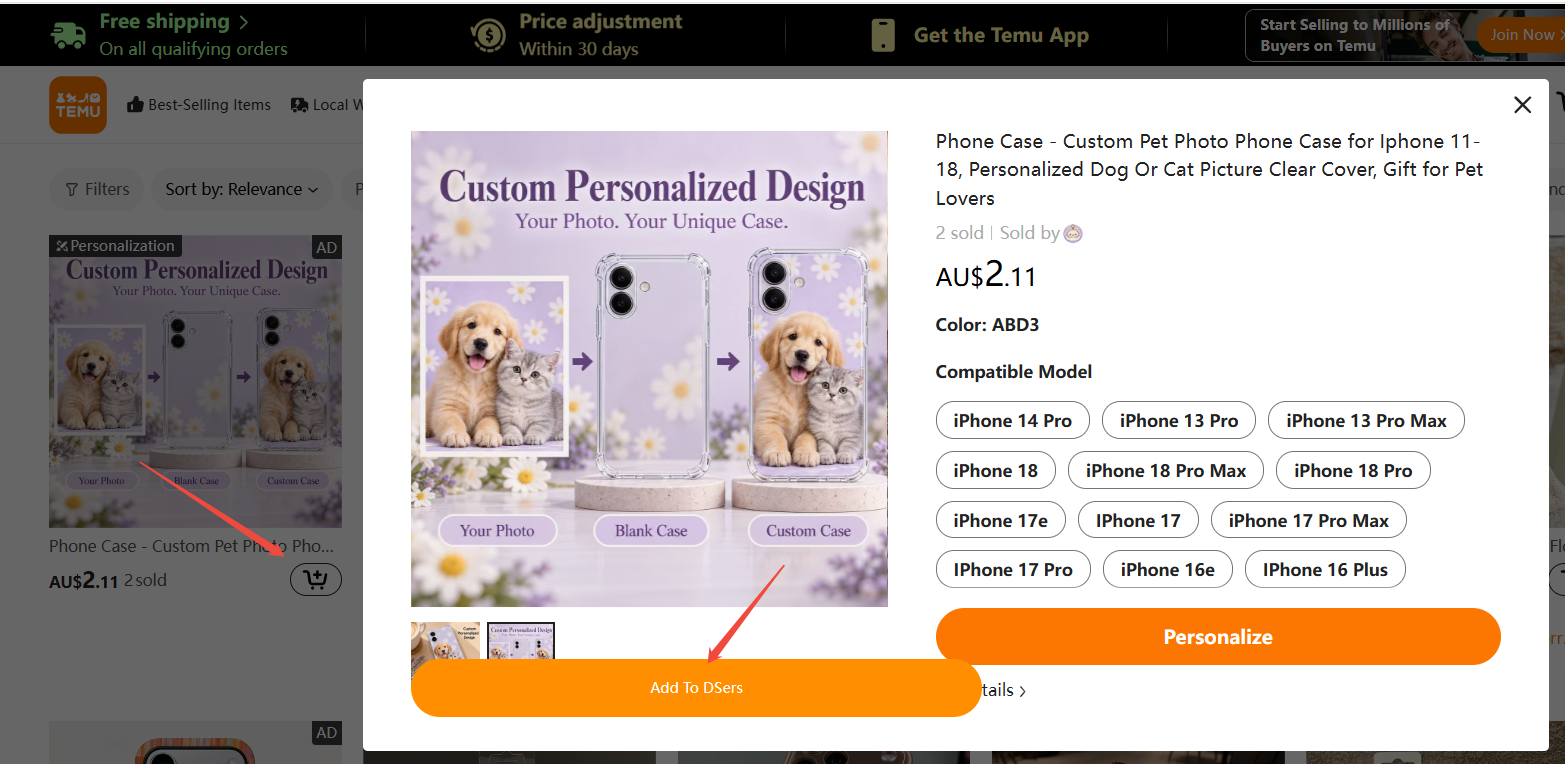
- Shopping Cart Pop-up (for products with multiple variants)
- Temu Homepage Product List (Quick Look)
- Product Detail Page
How to Sync Product Information
Inventory & Cost Update Guide
Even Temu did not share API with other App for update, DSers can update stock&inventory for Users auto:
- Automatic Sync: As long as the extension is enabled, logged into Temu, and you are logged into DSers, it will periodically update prices and inventory in the background.
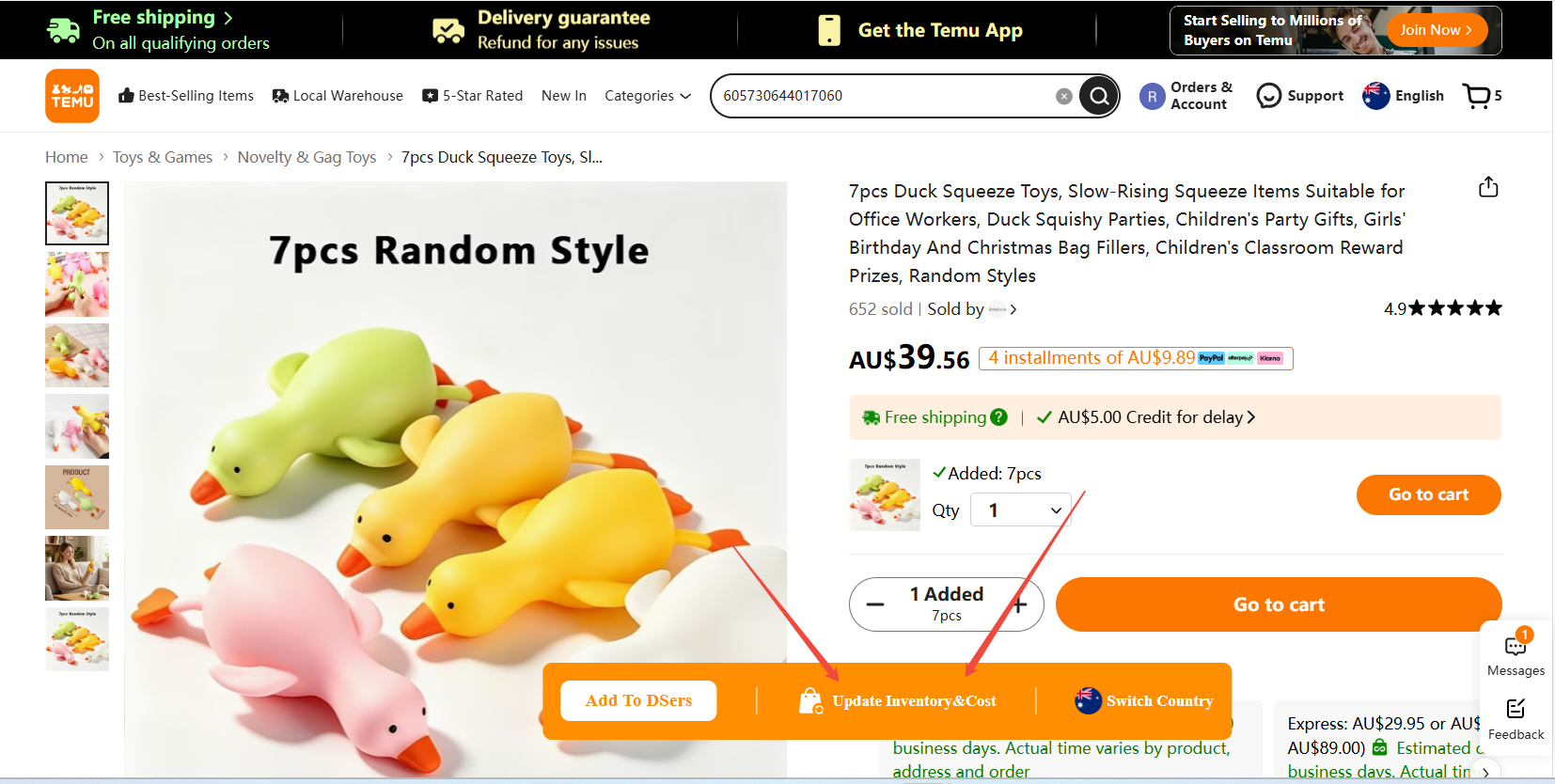
- Manual Sync: On a Temu product page, click the Update Inventory & Cost button on the extension to force an immediate sync.
How to switch countries for pricing
On the Import List/My Products product card, you will see a Ship to dropdown menu:
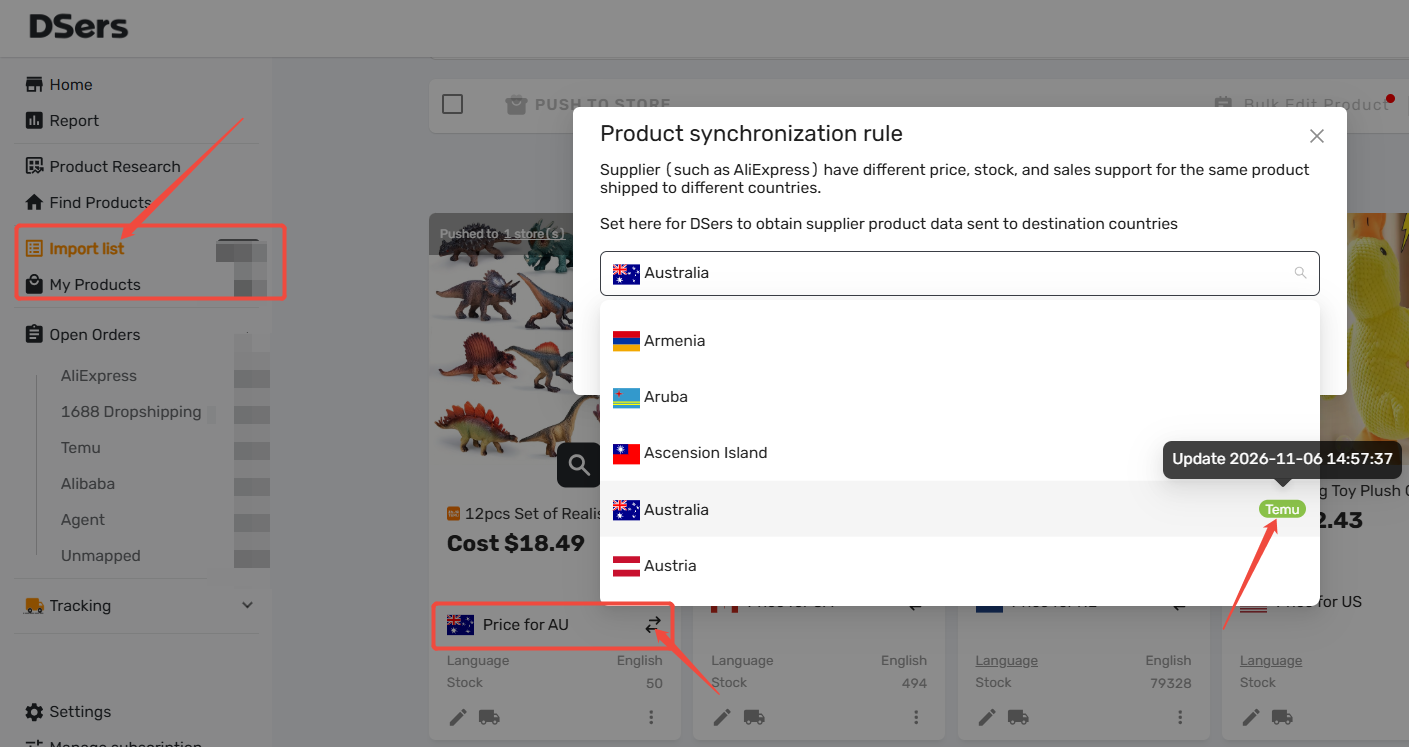
- Check prices across countries: Use the dropdown to view the price and logistics for the same product in different countries.
- Identify updated data: Countries that have product data will show a special icon. Hover over this icon to see the exact time it was last updated.
Ready to sync these updates to your store?
This section explains how DSers fetches the latest data from Temu.
To learn how to automatically push the updated prices and inventory from DSers to your store (e.g., Shopify), please refer to:
- [Price Update: How to Automatically Sync Store Prices]
- [Inventory Update: How to Automatically Sync Store Stock]
How to Place Orders
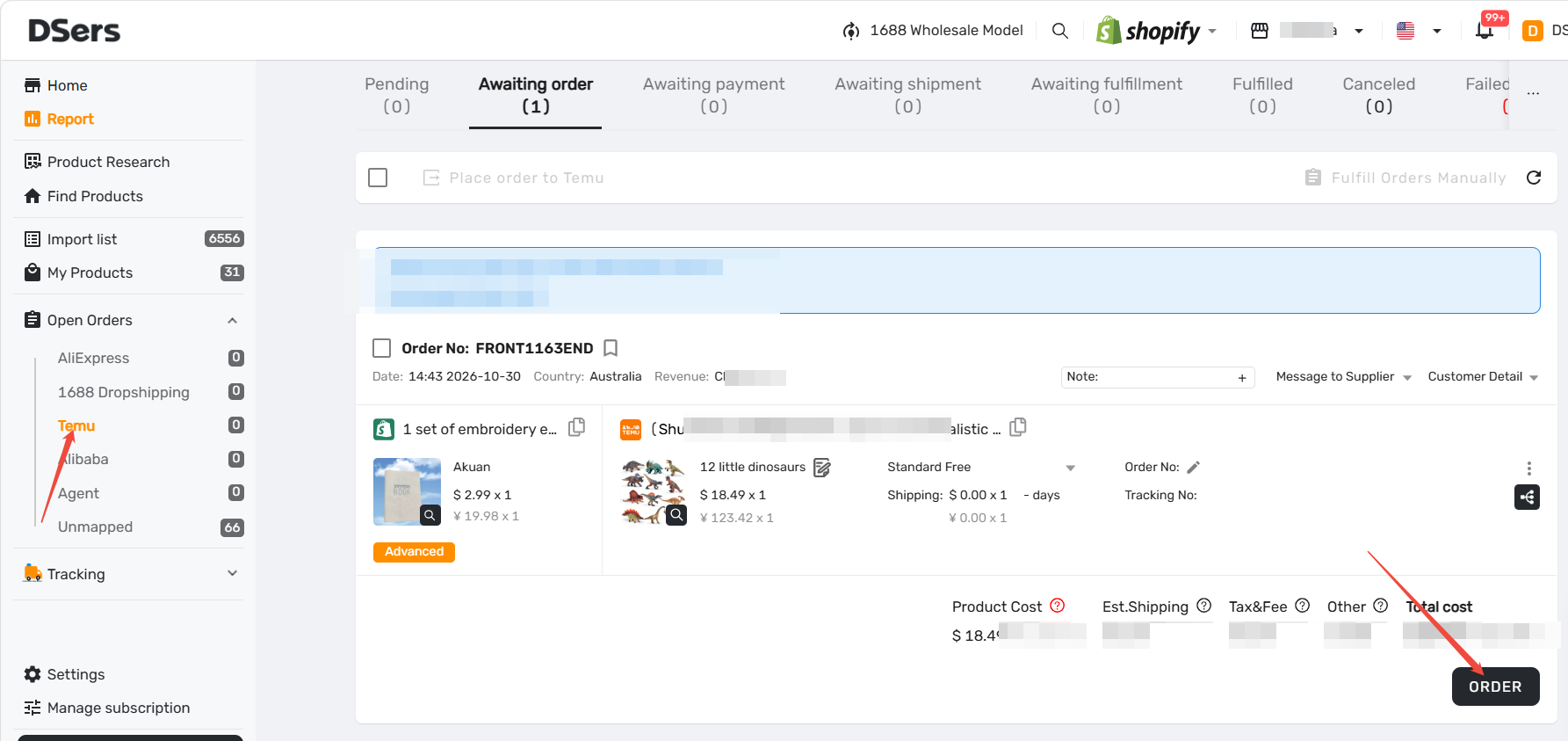
- In DSers, go to the Temu order tab and click Order.
- The extension will redirect you to Temu. Select the DSers Chrome Extension to place the order.
- Complete the final payment directly on the Temu checkout page.
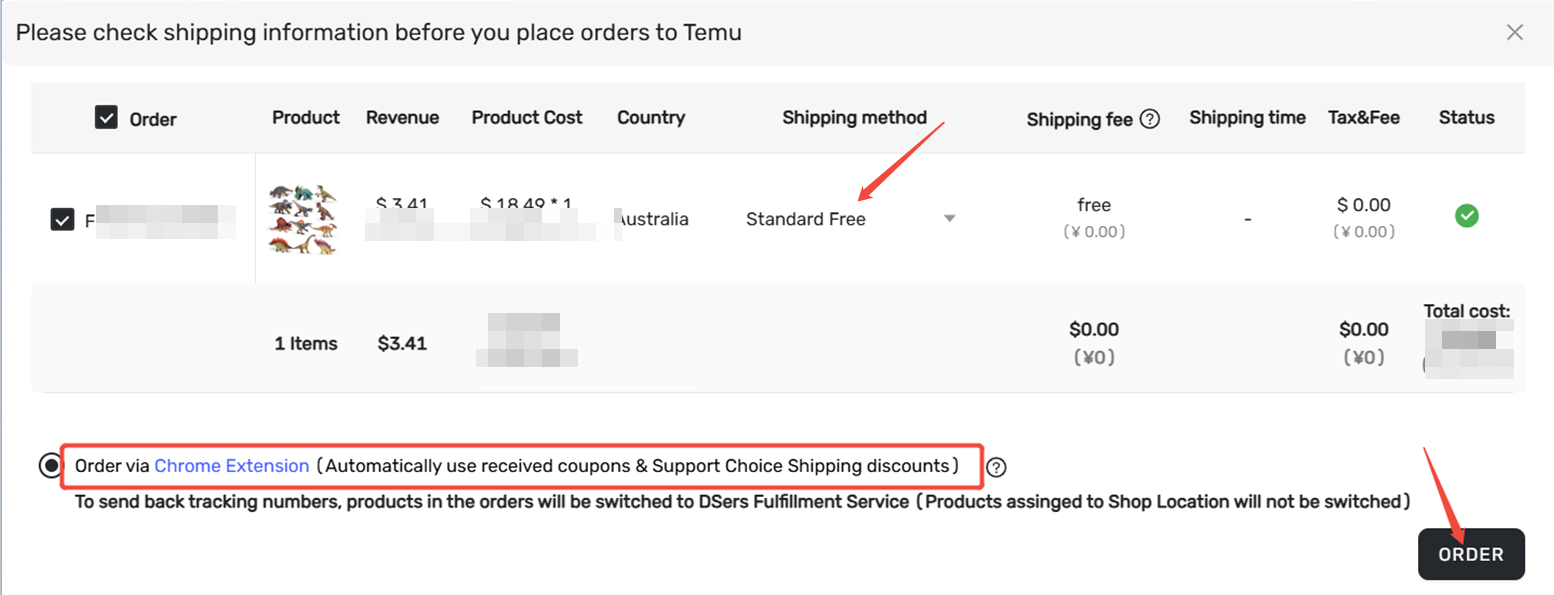
Tip: Before checkout, please note:
Country&Address Match: Your store's shipping country must match your logged-in Temu country.
Cart Clearing: The extension will automatically clear your existing Temu cart to add the order items.
Minimum Amount: Your order must meet Temu's minimum order amount requirement.
For more details, see [How to Place Orders with the DSers Chrome Extension], or contact DSers support for further help.
Related Articles
- DSers Chrome Extension: Sourcing and Product Import Tools Guide
- How to Place Orders Using DSers Chrome Extension
- DSers Chrome Extension: Placing orders and Syncing Tools Guide
- Supplier Optimizer: How to Find the Best Suppliers Using DSers Plugin
- Inventory Auto-Sync: Prevent Overselling
FAQ Section
Here are some common questions about dropshipping with Temu on DSers.

Get Started Now to Grow Your Online Business with the DSers!