

Learn how to connect your Walmart store to DSers and authorize it in a few simple steps.
Note
This guide walks you through connecting a Walmart store to DSers, from getting the API credentials Walmart requires to finishing the authorization.Click here to start dropshipping now with DSers
Once your store is connected, you can manage its products, orders, and inventory together with your other stores in DSers.
Before You Start
| ✅ Check | What to verify |
|---|---|
| Walmart Seller Center account | You have a Walmart Seller Center seller account with valid login credentials |
| DSers account | Make sure you already have a DSers account. |
How to connect your Walmart store
Step 1: Get your API credentials from Walmart
- Log in to your Walmart Seller Center and open the Developer Portal. If you cannot find it, go to
developer.walmart.com/generateKeydirectly. - Click API Keys in the left sidebar, then open My API Key.
- Copy ClientId and ClientSecret using the copy icon next to each field.
Tip: Copy carefully — extra spaces cause the authorization to fail. Use the key under My API Key, not one that belongs to another Solution Provider.
Step 2: Add your Walmart store in DSers
New to DSers? Learn how to create your account here: [Create Your DSers Account: Sign Up Step by Step]
Connecting another store? Check out: [How to Connect Multiple Stores to a Single DSers Account]
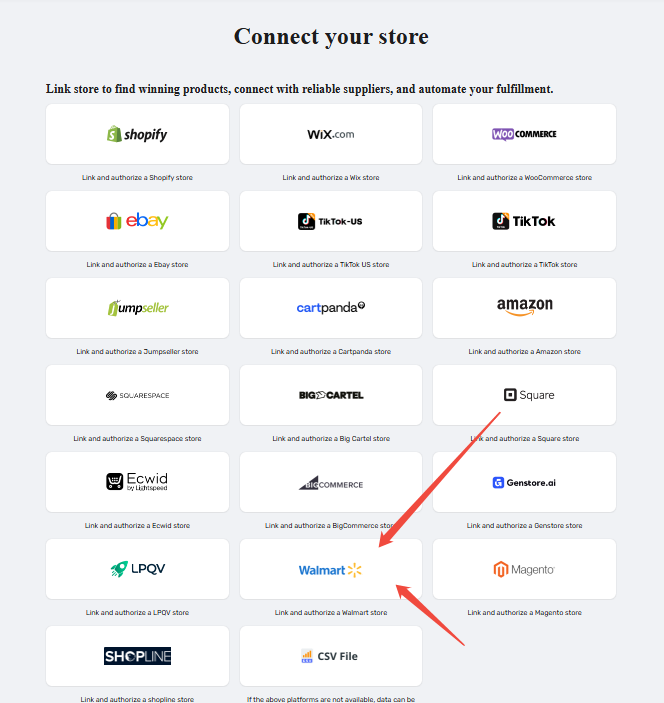
- Click LINK TO MORE STORES in the sidebar, then select Walmart.
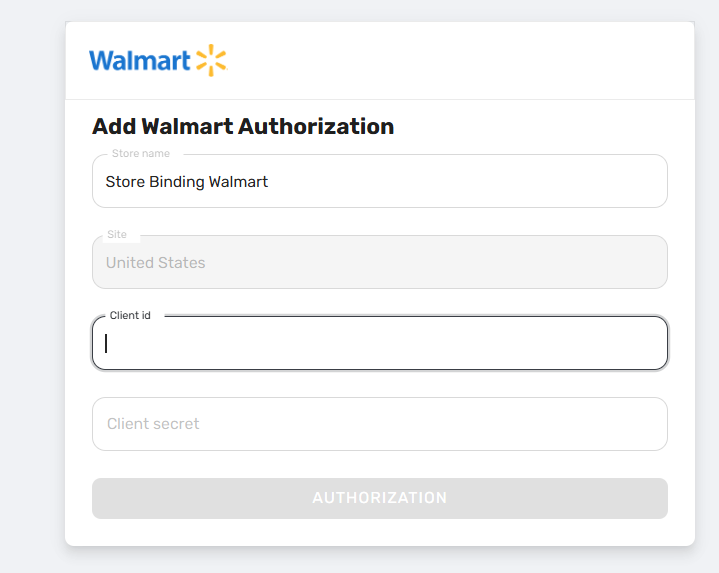
- Fill in the Add Walmart Authorization dialog:
- Click AUTHORIZATION.
Store name: your Walmart store name, up to 50 characters. It cannot match a Walmart store you have already added.
Site: United States (default, cannot be changed).
Client id and Client secret: the credentials you copied in Step 1.
Step 3: Confirm your store was added
Your store now appears under DSers > Settings > Application Management > Sales Channel.
Common Issues
1. Authorization fails or shows "Connection Failed
What's happening: The credentials were copied with extra spaces, or copied incompletely.
What to do:
- Copy the Client ID and Client Secret again, making sure there are no spaces before or after them.
- Check that the credentials were generated under My API Key.
- If you were using a delegated key, generate a new key in the Walmart Developer Portal.
2. "A Walmart store with the same name already exists. Please enter a different name."
What's happening: The Store name you entered matches a Walmart store you have already added.
What to do:
- Enter a different store name, ideally the same as the name used in your Walmart Seller Center.
What You Can Do Next
Once your Walmart Shop is connected, you'll be prompted to choose a subscription plan. The Basic plan is free — no credit card needed.
After that, the most common next step is connecting your supplier account.
Ready to connect a supplier?[Connect Your AliExpress Account to DSers]
Related Articles
- Create Your DSers Account: Sign Up Step by Step
- How to Connect Multiple Stores to a Single DSers Account
- Connect Your AliExpress Account to DSers
- DSers Plans and Billing: A Complete Overview
- Store Authorization Failed? How to Relink Store
FAQ
Here are some common questions about authorizing a Walmart store in DSers.

Get Started Now to Grow Your Online Business with the DSers!